If your GoTVDSB.ca account has its password reset and has a pre-existing profile on the Chromebook, you will get an error when you try to sign in with the new password: “Sorry, your password could not be verified…”
To fix this issue, you will re-add your account to the Chromebook.
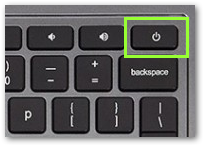
- If you are signed in, then sign out or reboot the Chromebook. At the bottom left, click Sign Out.
- On the bottom left, click "Add Person".
- Click "Next" on the "Sign in to your Chromebook" page.
- Enter your GoTVDSB.ca account, then click "Next".
NOTE: If you do not know your GoTVDSB.ca account, please contact your teacher.
- Enter the password and click "Sign in".
- Click "Forgot your old password?".
- Click "Proceed anyways".
When you remove an account, it’s only removed from the Chromebook. The Google Account itself, including its data and settings, will be safe.
For Addition Information see Google Support page Remove an account